Using the Google Ads API in Google Apps Script
Edit Google Ads entities programmatically using the REST interface for the Google Ads API in Google Apps Script.
The problem
Google Ads Scripts cannot manage some Google Ads entities. For example, it cannot create new accounts.
Try Google Ads Scripts first. Script previews, autocomplete and automated authentication make it easier to work with.
If you need help with something similar to this blog post, then get in touch through my contact page.
Get in touchAuthentication
To get started, we need to:
- Edit our appsscript.json file to add the Google Ads API to the OAuth scopes.
- Get our developer token from Google Ads. Here are the instructions from Google for how to get your developer token.
- Create a new Google Cloud project to associate with our Google Apps script project.
- Associate your new project number to a Google Apps Script project by going to Project Settings > Google Cloud Platform (GCP) Project and entering the project number.
- Enable the Google Ads API in the new Google Cloud Project. Here are the instructions for this, where you’ll need to enable the ‘Google Ads API’ in the library.
Editing your appsscript.json file
This file is hidden by default. You can un-hide it under Project Settings > General Settings and tick the ‘Show “appsscript.json” manifest file in editor’ option.
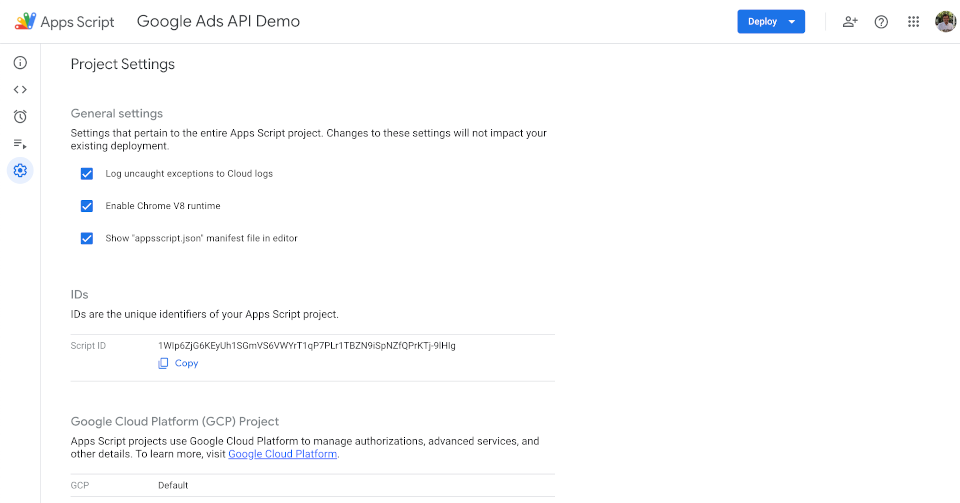
Now we can edit it. Add an oauthScopes key to the JSON file, with an array of scopes as the value. These scopes tell the script what it can read and modify.
appsscript.json
{
    "timeZone": "Pacific/Auckland",
    "exceptionLogging": "STACKDRIVER",
    "runtimeVersion": "V8",
    "oauthScopes": [
        "https://www.googleapis.com/auth/adwords",
        "https://www.googleapis.com/auth/script.external_request"
    ]
}
Now anyone who runs a function in the project gets a prompt to grant management access to their Google Ads account and to make external requests to other apps.
Once they grant that access, we can grab the token in our script using ScriptApp.getOAuthToken().
Every request needs both the OAuth token and the developer token in its headers, like this:
let headers = {
    Authorization: "Bearer " + ScriptApp.getOAuthToken(),
    "developer-token": "DEVELOPER_TOKEN",
    "login-customer-id": "THE_PARENT_MCC_CUSTOMER_ID_YOU_CREATED_THE_TOKEN_IN_WITH_NO_HYPHENS"
};

let requestParams = {
    method: "POST",
    contentType: "application/json",
    headers: headers,
    payload: JSON.stringify({
        YOUR_PAYLOAD: 'GOES_HERE'
    })
};

let response = UrlFetchApp.fetch("API_ENDPOINT_URL", requestParams);

Logger.log(response);
Last, fill in the payloads and API endpoints for the entities we want to manage.
Finding the right endpoint URL is the hard part. You may have to trawl through the code for the client libraries. Open the ‘services’ files under the version number you’re working with and find the entity you want to read or modify. Then check the comments for that entity’s URL structure.
Fetching reporting data
Google Ads Scripts is simpler for reporting, unless you want to create a user interface for your script in Google Sheets.
Here is the same thing through the API, using Google’s example for fetching campaign reporting data by device from the last 30 days.
We’ll convert the curl snippets to Google Apps Script by filling in the payload and endpoint URL from the code above.
Our endpoint URL would be:
https://googleads.googleapis.com/v25/customers/{cid}/googleAds:searchStream
Here, v25 is the API version number and cid is the Google Ads customer ID you want to pull data from, without hyphens. v25 was the latest version when this was last updated, so check Google’s release notes and swap in the current one.
Our payload would be:
{
    "query": `SELECT campaign.name, campaign.status, segments.device,
    metrics.impressions,
    metrics.clicks,
    metrics.ctr,
    metrics.average_cpc,
    metrics.cost_micros
    FROM campaign
    WHERE segments.date DURING LAST_30_DAYS`
}
To put this together with our previous script, we also need to:
- Replace the login-customer-id header value with the parent MCC customer ID where you created the API token.
- Replace the developer-token header value with your developer token.
Putting it all together, it looks something like:
//replace these example values with your specific values - the customer IDs have no hyphens i.e. 123-456-789 becomes 123456789
const DEVELOPER_TOKEN = "abc123";
const PARENT_MCC_ID = "1234567";
const CHILD_CUSTOMER_ID = "1234568";

//the rest of the script

let headers = {
    Authorization: "Bearer " + ScriptApp.getOAuthToken(),
    "developer-token": DEVELOPER_TOKEN,
    "login-customer-id": PARENT_MCC_ID
};

let requestParams = {
    method: "POST",
    contentType: "application/json",
    headers: headers,
    payload: JSON.stringify({
        query: `SELECT campaign.name, campaign.status, segments.device,
                    metrics.impressions, metrics.clicks, metrics.ctr,
                    metrics.average_cpc, metrics.cost_micros
            FROM campaign
            WHERE segments.date DURING LAST_30_DAYS`
    })
};

let response = UrlFetchApp.fetch("https://googleads.googleapis.com/v25/customers/" + CHILD_CUSTOMER_ID + "/googleAds:searchStream", requestParams);

Logger.log(response);
Creating an account
Creating an account works the same way. We need to:
- Update our endpoint URL from the reporting service, to the account service.
- Find the endpoint URL in the client library code, under your version > services > customer_service.proto.
- Within that file, look for the
CreateCustomerClient.
- Update our payload to represent an account, rather than a report query.
It will look something like:
//replace these example values with your specific values - the customer IDs have no hyphens i.e. 123-456-789 becomes 123456789

const DEVELOPER_TOKEN = "abc123";
const PARENT_MCC_ID = "1234567";
const NEW_ACCOUNT_NAME = "ABC Limited";
const NEW_ACCOUNT_CURRENCY_CODE = "NZD";
const NEW_ACCOUNT_TZ = "Pacific/Auckland";

//the rest of the script

let endpoint = "https://googleads.googleapis.com/v25/customers/" + PARENT_MCC_ID + ":createCustomerClient";

let newCustomerResource = {
    descriptive_name: NEW_ACCOUNT_NAME,
    currency_code: NEW_ACCOUNT_CURRENCY_CODE,
    time_zone: NEW_ACCOUNT_TZ
};

let newCustomerResource2 = {
    customer_id: PARENT_MCC_ID,
    customer_client: newCustomerResource
};

let headers = {
    Authorization: "Bearer " + ScriptApp.getOAuthToken(),
    "developer-token": DEVELOPER_TOKEN,
    "login-customer-id": PARENT_MCC_ID
};

let accountCreateParams = {
    method: "POST",
    contentType: "application/json",
    headers: headers,
    payload: JSON.stringify(newCustomerResource2)
};

let response = UrlFetchApp.fetch(endpoint, accountCreateParams);

Logger.log(response);
Run the script above and it will create a child account under your MCC.
If you need help with something similar to this blog post, then get in touch through my contact page.
Get in touchFrom here, you can link the new child account to your invoice billing or create conversions inside it.