Managing your Google Ads Display placements
A script for managing your Display placements, and stopping Google from serving your ads on junk.
The problem
Google Ads often serves ads on low quality websites and YouTube videos. For example:
- Serving ads on non-English placements, when targeting English speakers.
- Serving ads on junk content, like tarot card reading.
To check these, you can:
- Go to ‘where ads showed’ in your account, through Content > Where ads showed.
- Go to Reports > Predefined reports > Other > Performance Max placements.
The MCC Google Ads script below pulls these for every account in your MCC. But first, check your content suitability settings. They manage placements in bulk, so start there before excluding placements one by one.
If you need help with something similar to this blog post, then get in touch through my contact page.
Get in touchContent suitability
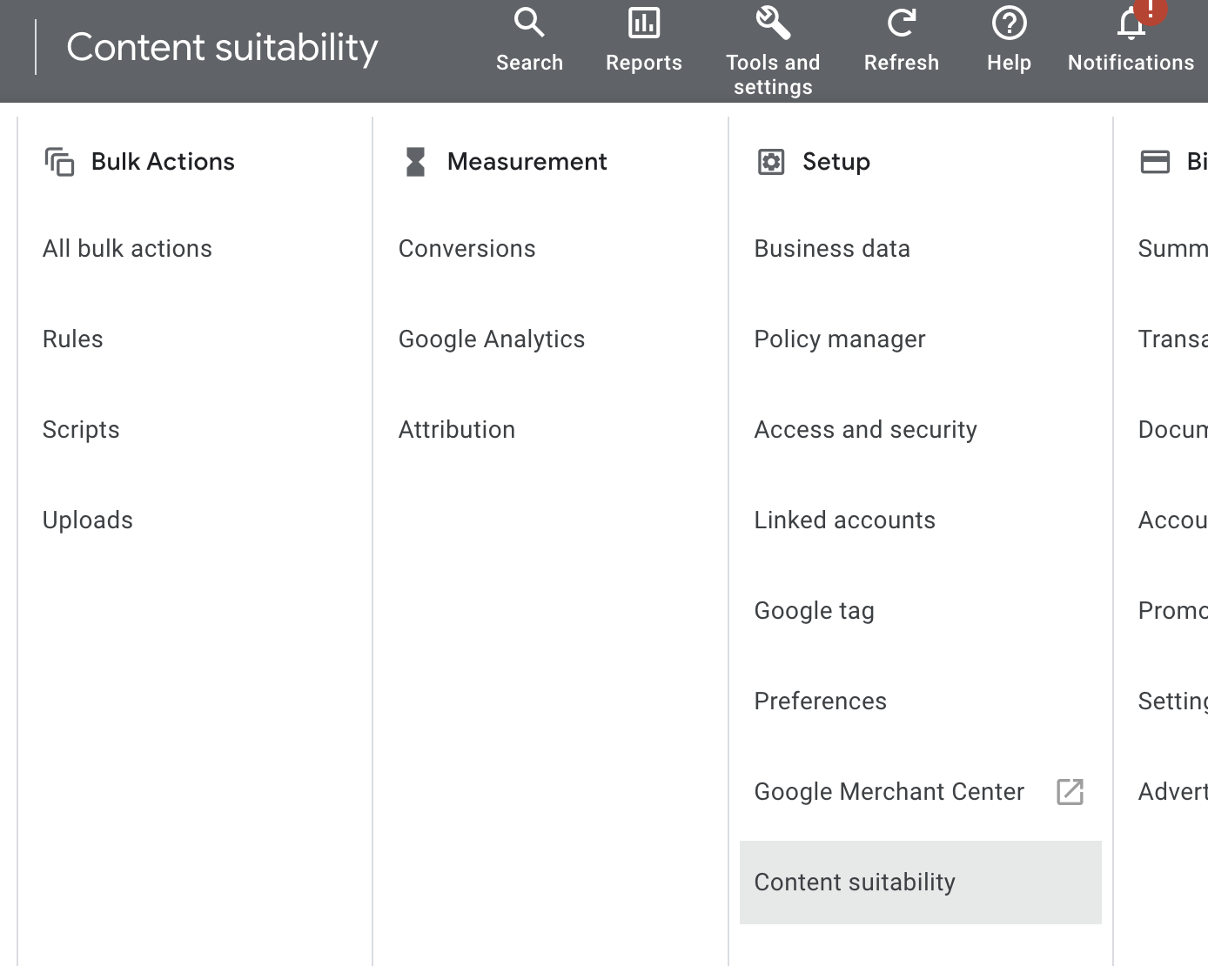
Find content suitability in Tools and settings > Setup > Content suitability. These settings control where ads show across all Google networks.
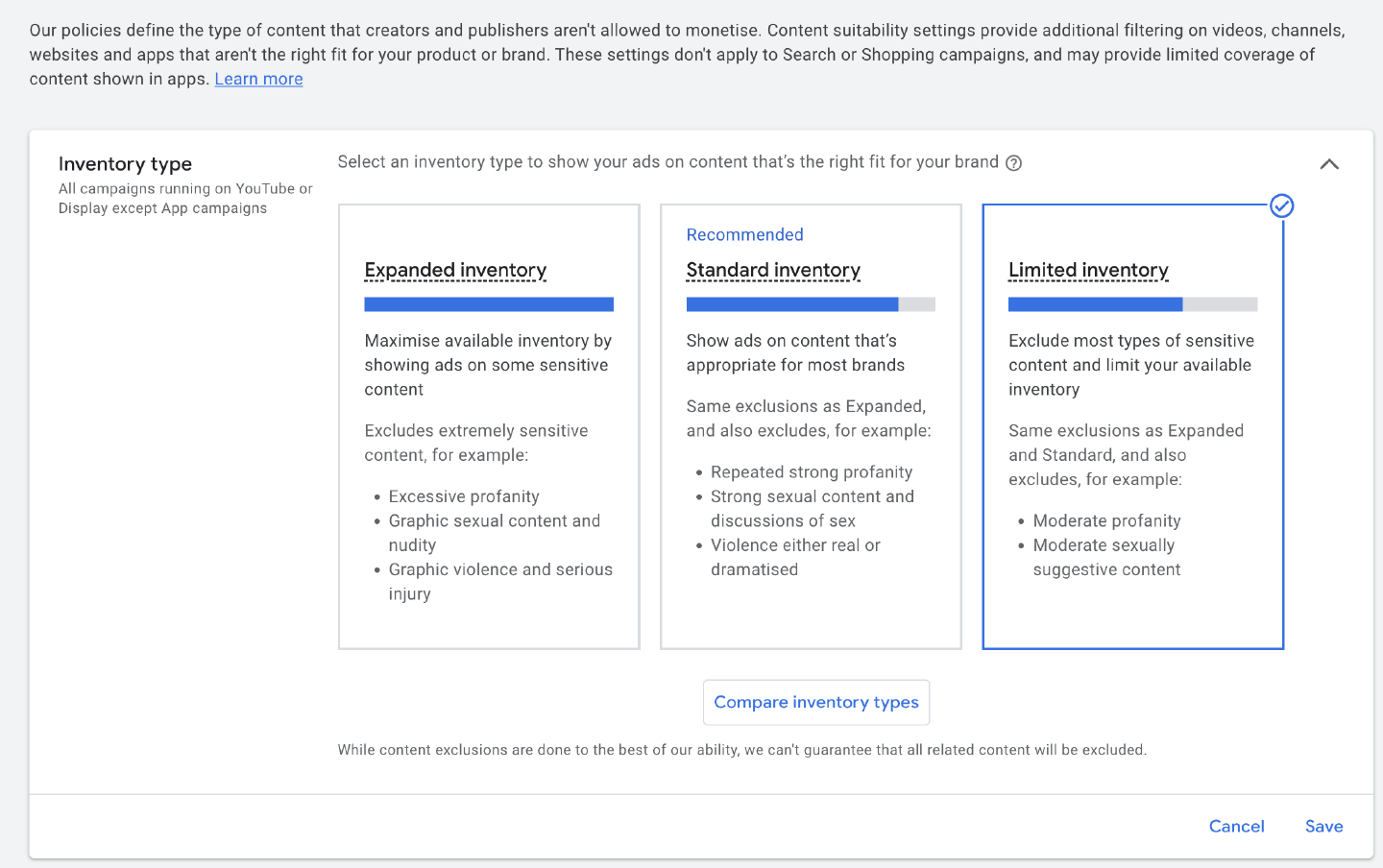
‘Limited inventory’ gives you the most conservative pool of placements. Tick every sensitive topic exclusion too.
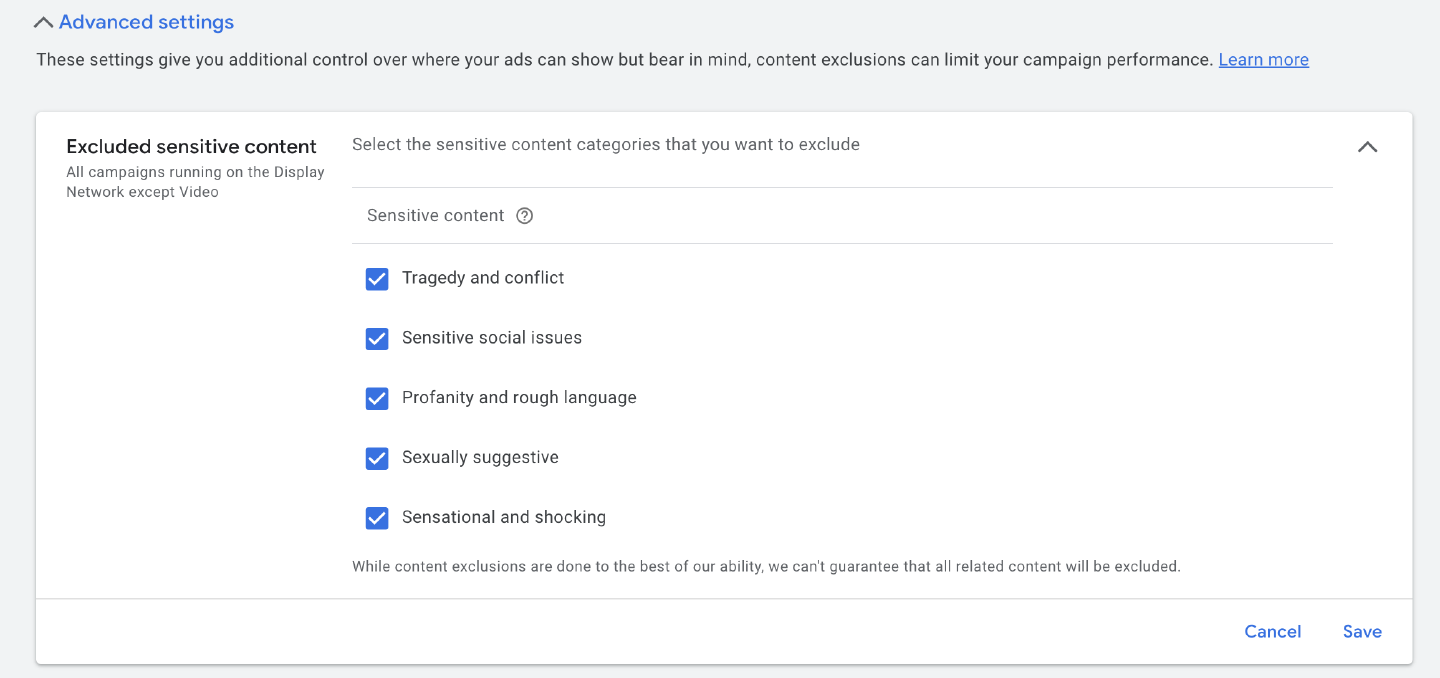
In advanced settings, under ‘Excluded types and labels’, ‘content suitable for families’ excludes content aimed at children. You do not want ads showing on Peppa Pig videos. Exclude ‘content not yet labelled’ as well.
In the ‘Excluded placements’ section, you can exclude all types of mobile games on both Apple and Google Play. Games are a common source of accidental clicks.
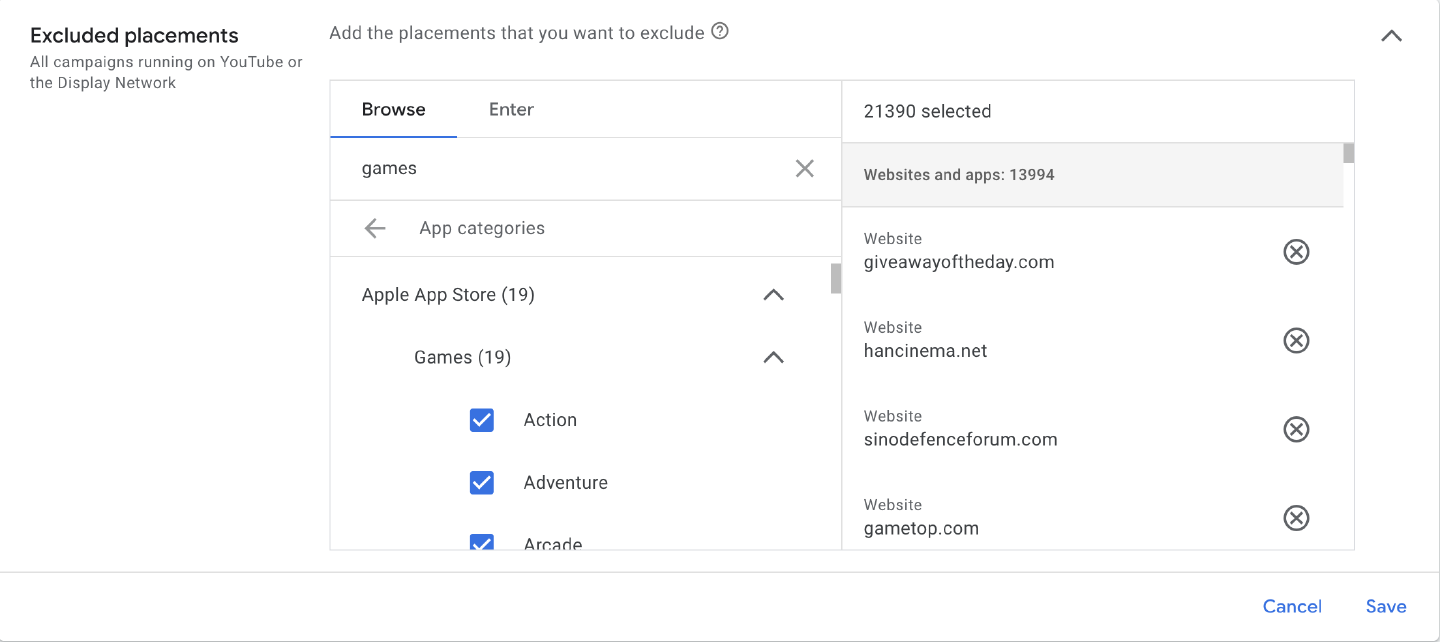
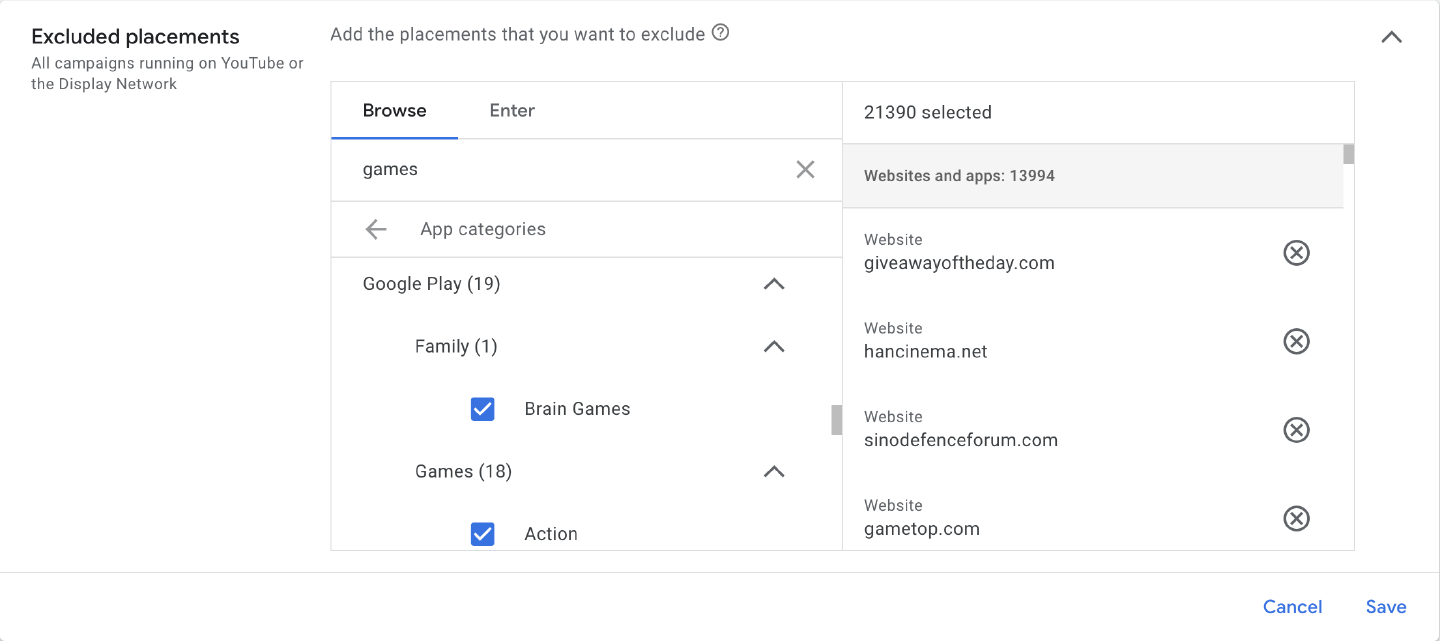
Work through these categories and add more exclusions. Excluding ‘Music’ stops ads showing on music videos.
Last, add a list of keywords to the excluded content keywords. For example:
baby
baby shark
babyshark
bible
blessing
blessings
call tracker
christ
cleaner
daddy pig
dictionary
downloader
emoji
english tutorials
esol
faith
generator
god
goddess
horoscope
icons
ielts
jesus
keyboard
kids
kids songs
language learning
learn english
manifestation
mp3 converter
pastor
pdf
pdf converter
pedometer
peppa
peppa pig
peppapig
prayer
psychic
rainbow
religion
remote control
scanner
spiritual
step counter
tarot
tot
tots
tv remote
universal remote
video converter
vpn
wifi
worship
Run the MCC script and you will see why I chose these keywords.
The MCC Google Ads script
This script pulls the top 500 placements for each account in the MCC, ordered by clicks, conversions and impressions, then writes them to a Google Sheet.
To use it, at the MCC level, go to Tools and settings > Bulk actions > Scripts.
Then push the plus (+) button to create a new script. Here are Google’s instructions for adding a new script to the MCC.
Paste in the following script and set the configuration variables:
- The start date in yyyy-mm-dd format.
- The end date in yyyy-mm-dd format, to override the default of today.
- The ID of the Google Sheet to write the data to. You will find it in the URL of the Google Sheet. For example, if the URL is:
Then the ID is:
https://docs.google.com/spreadsheets/d/1Bx_l29l-LsySbmdVz4YH5X7kIjwQ6n8fPb40TGAIUD4/edit#gid=0Make a copy of my template and update the config ID with your new spreadsheet ID.1Bx_l29l-LsySbmdVz4YH5X7kIjwQ6n8fPb40TGAIUD4 - The name of the Google Sheet tab to write the data to.
// CONFIG - EDIT THESE //

const startDate = "2023-01-01";
const endDateOverride = null;
const spreadsheetId = "1Bx_l29l-LsySbmdVz4YH5X7kIjwQ6n8fPb40TGAIUD4";
const tabName = "Display Placements [DATA]";

// DO NOT TOUCH THE REST UNLESS YOU KNOW WHAT YOU ARE DOING //

function main() {
  const accountSelector = MccApp.accounts();

  accountSelector.executeInParallel(
    "processClientAccount",
    "afterProcessAllClientAccounts",
  );
}

function processClientAccount() {
  const account = AdsApp.currentAccount();

  const today = new Date();

  const formatDateAsString = (date) => {
    return Utilities.formatDate(date, account.getTimeZone(), "yyyy-MM-dd");
  };

  const accountName = account.getName();

  const endDate = endDateOverride ? endDateOverride : formatDateAsString(today);

  const query =
    `SELECT group_placement_view.display_name, group_placement_view.target_url, metrics.clicks, metrics.active_view_impressions, metrics.conversions,
    metrics.cost_micros ` +
    `FROM group_placement_view WHERE segments.date BETWEEN '${startDate}' AND '${endDate}' ` +
    `ORDER BY metrics.clicks DESC, metrics.conversions DESC, metrics.active_view_impressions DESC ` +
    `LIMIT 500`;

  const rows = AdsApp.report(query).rows();

  let returnValue = [];

  while (rows.hasNext()) {
    let row = rows.next();

    returnValue.push({
      "AccountDescriptiveName": accountName,
      "DisplayName": row["group_placement_view.display_name"],
      "PlacementTargetUrl": row["group_placement_view.target_url"],
      "Impressions": row["metrics.active_view_impressions"],
      "Clicks": row["metrics.clicks"],
      "Conversions": row["metrics.conversions"],
      "Cost": row["metrics.cost_micros"]
    });
  }

  return returnValue;
}

function addDataToSheet(sheet, data, autoFillFormulae) {
  //clears any extra at bottom, rather than just doing the number of rows in the data
  const rangeToClear = sheet.getRange(1, 1, sheet.getLastRow(), data[0].length);
  try {
    rangeToClear.clear();
  } catch (e) {
    Logger.log("No data to clear.");
  }
  //Pastes the csv file in the sheet
  sheet.getRange(1, 1, data.length, data[0].length).setValues(data);

  if (autoFillFormulae) {
    //find ranges that need autofilling

    const lastColumn = sheet.getLastColumn();

    for (let i = data[0].length + 1; i < lastColumn + 1; i++) {
      let source = sheet.getRange(2, i);

      let destination = sheet.getRange(2, i, data.length);

      source.autoFill(
        destination,
        SpreadsheetApp.AutoFillSeries.DEFAULT_SERIES,
      );
    }
  }
}

function afterProcessAllClientAccounts(results) {
  let finalData = [[
    "AccountDescriptiveName",
    "DisplayName",
    "PlacementTargetUrl",
    "Impressions",
    "Clicks",
    "Conversions",
    "Cost"
  ]];
  for (let i = 0; i < results.length; i++) {
    let result = JSON.parse(results[i].getReturnValue());

    for (let j = 0; j < result.length; j++) {
      let row = result[j];

      finalData.push([
        row["AccountDescriptiveName"],
        row["DisplayName"],
        row["PlacementTargetUrl"],
        row["Impressions"],
        row["Clicks"],
        row["Conversions"],
        row["Cost"]/1000000
      ]);
    }
  }

  const ss = SpreadsheetApp.openById(spreadsheetId);
  const sheet = ss.getSheetByName(tabName);

  addDataToSheet(sheet, finalData, true);
}
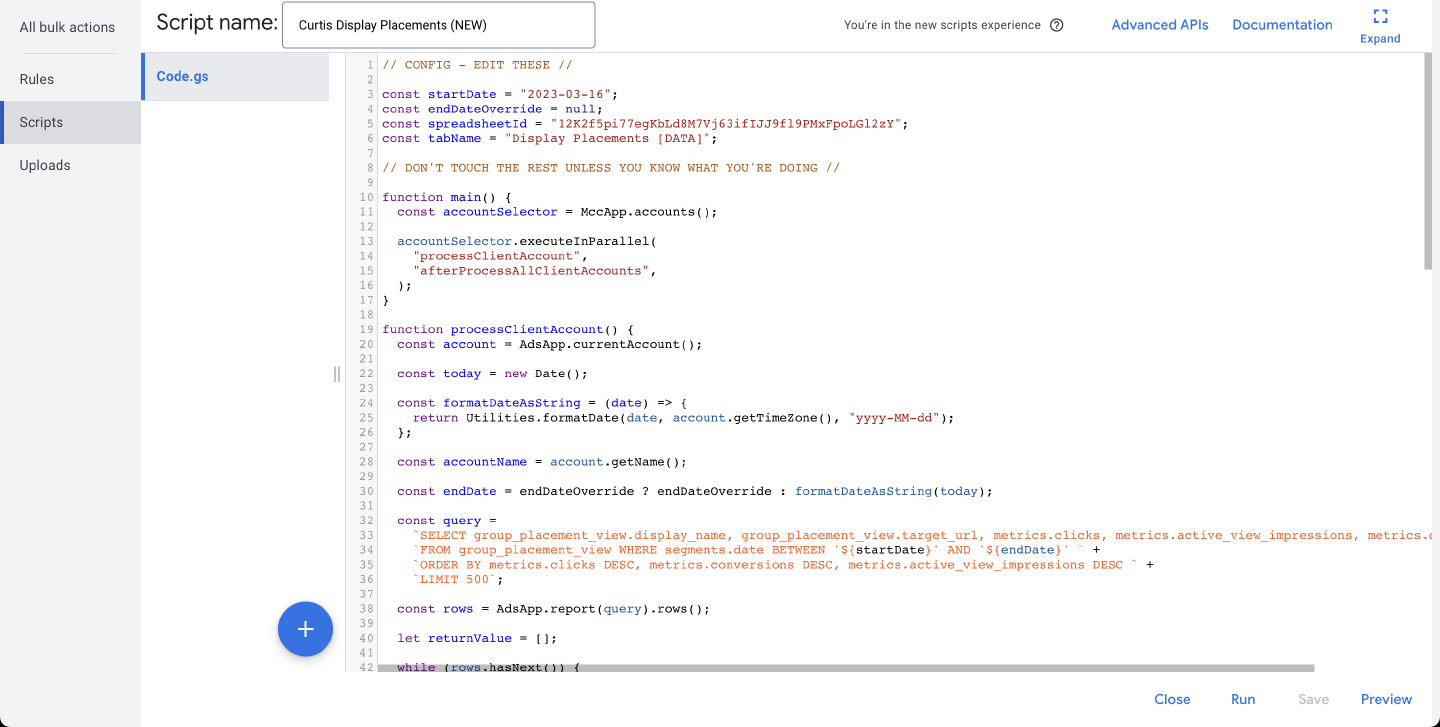
Save the script and run it to check it works. Then schedule it to run daily.
The Google Sheet
If you have not already, make a copy of this spreadsheet. Update your script config with the new ID. To set it up yourself, follow the steps below.
Add two tabs to your Sheet. Call one ‘Display Placement Whitelist [DATA]’ and the other ‘Display Placement Exclusions [DATA]’. One holds your whitelisted placements and the other holds your blacklist. Give both tabs these columns.
| DisplayName | PlacementTargetUrl |
|---|---|
| Example website | example.com |
| Example YouTube Channel | youtube.com/channel/UCk8GzjMOrta8yxDcKfylJYw |
Then add two columns to the main tab holding the data from the script. The first checks whether the placement is already in the whitelist. The second checks the blacklist. They look like this:
=IFERROR(LEN(XLOOKUP(C2,'Display Placement Whitelist [DATA]'!B:B,'Display Placement Whitelist [DATA]'!B:B))>0,FALSE)
=IFERROR(LEN(XLOOKUP(C2,'Display Placement Exclusions [DATA]'!B:B,'Display Placement Exclusions [DATA]'!B:B))>0,FALSE)
Drag the formulae down and create a pivot table to show the data. Filter it by In Whitelist = FALSE and In Blacklist = FALSE to see only the placements you have not assessed.
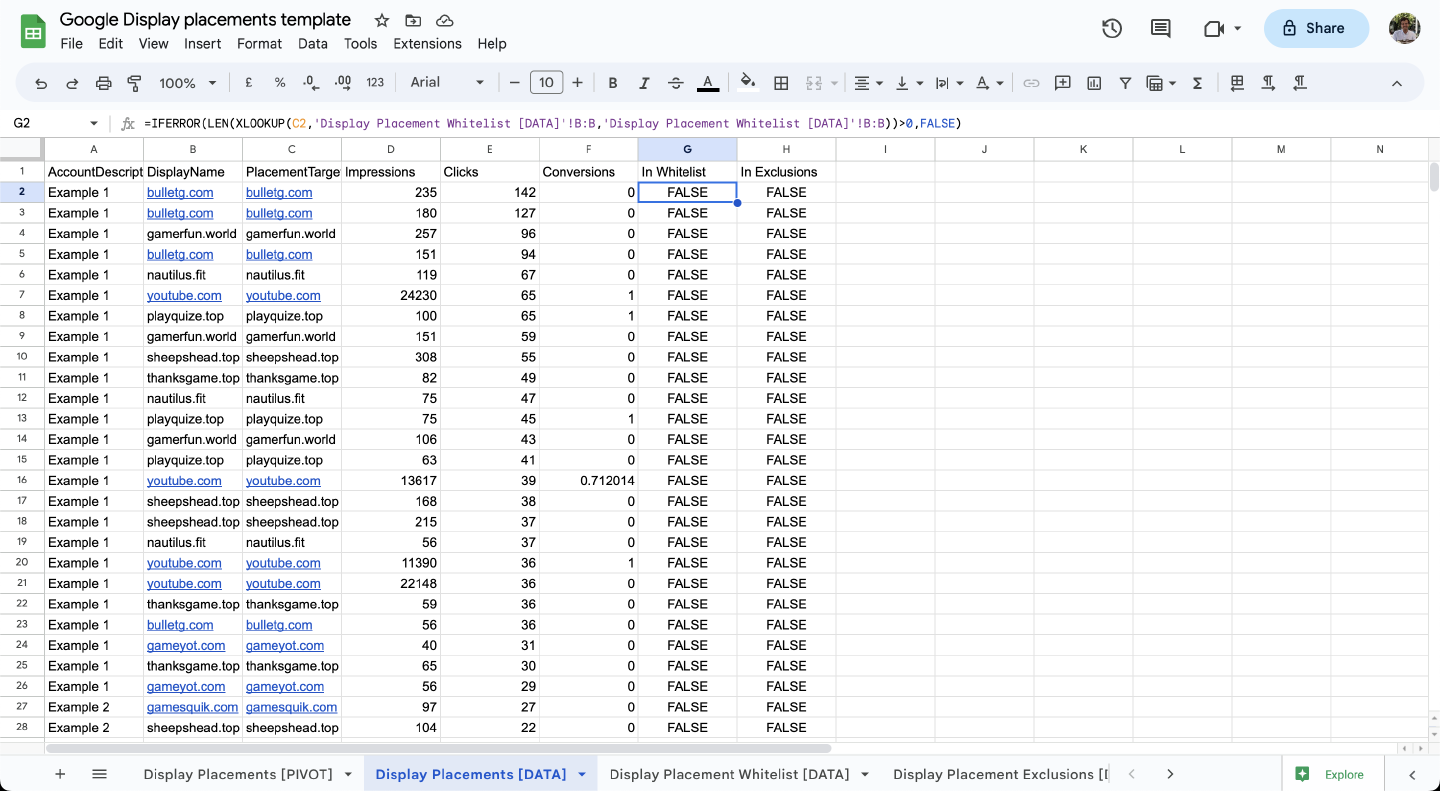
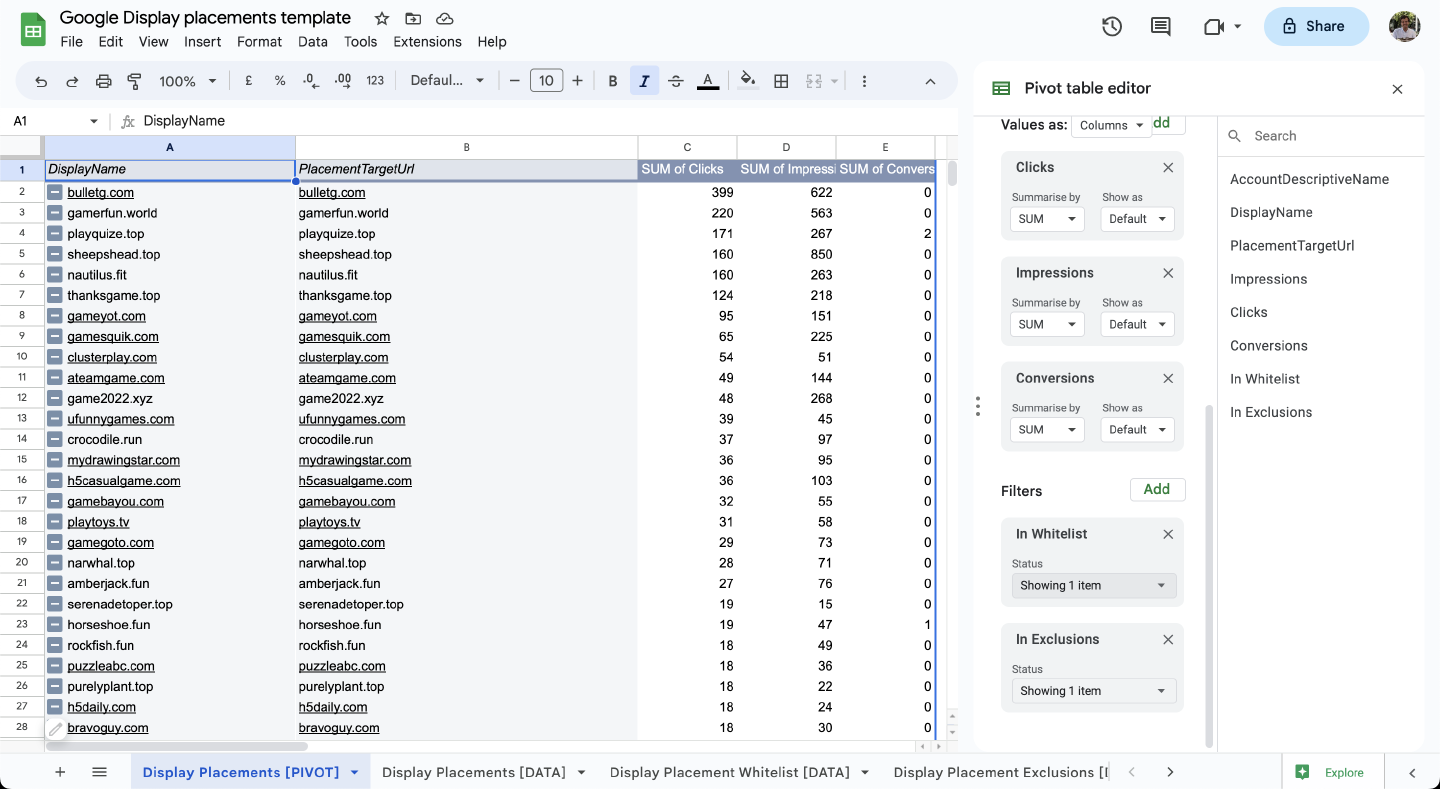
Now sort the pivot table by clicks and:
- Copy placement URLs you want to exclude into the blacklist tab.
- Copy placement URLs you want to continue serving ads on into the whitelist tab.
- Each time you review the placements, copy all the blacklisted placement URLs. Paste them into the “Excluded placements” section of the Content suitability settings.
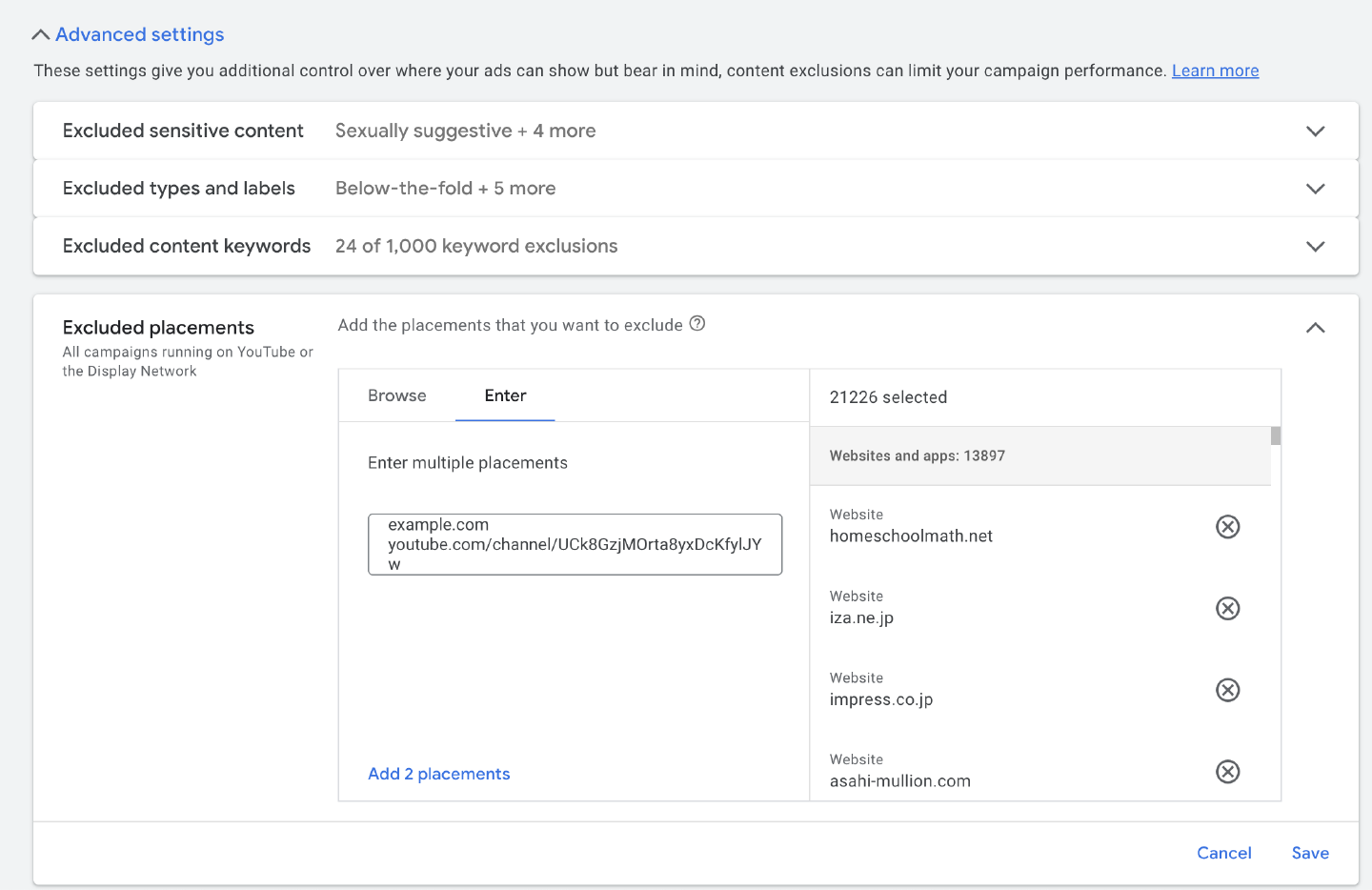
With this method, you never review the same placement twice. Google stops serving ads on your blacklisted placements across all its networks.
If you need help with something similar to this blog post, then get in touch through my contact page.
Get in touchClosing comments
You cannot manage Content Suitability through the Google Ads API (yet), and it does not exist at the MCC level. Shared placement exclusions do not work with Performance Max campaigns either.